
Batch Import
Import multiple posts at once using Excel spreadsheets
Overview
Batch Import allows you to create multiple posts at once by uploading an Excel file. Prepare your content in a spreadsheet, upload it, and schedule everything in seconds.
When to Use
- Migrating content from another platform
- Planning a week's worth of posts in advance
- Running a content campaign with multiple posts
- Team workflows where content is prepared externally
Excel Format
Required Columns
| Column | Description | Example |
|---|---|---|
content | The post text | "Check out our new feature!" |
Optional Columns
| Column | Description | Example |
|---|---|---|
scheduled_at | Publish date/time | "2026-01-20 09:00" |
image_url | Image URL to attach | "https://..." |
platform | Target platform | "twitter", "threads" |
community_id | Twitter Community ID | "123456789" |
Example Spreadsheet
| content | scheduled_at | image_url |
|---|---|---|
| Morning motivation post | 2026-01-20 08:00 | |
| Product announcement | 2026-01-20 12:00 | https://example.com/img.jpg |
| Evening engagement | 2026-01-20 18:00 |
How to Import
Step 1: Open Import Dialog
- Go to Compose in the sidebar
- Click the Batch Import button
- Download the template file to see the expected format
Step 2: Edit the Template
- Open the downloaded template (includes headers and example data)
- Replace the example content with your posts
- Configure optional columns as needed:
scheduled_at- Publish date/timeimage_url- Image to attachplatform- Target platformcommunity_id- Twitter Community ID
- Save the file
Step 3: Upload and Preview
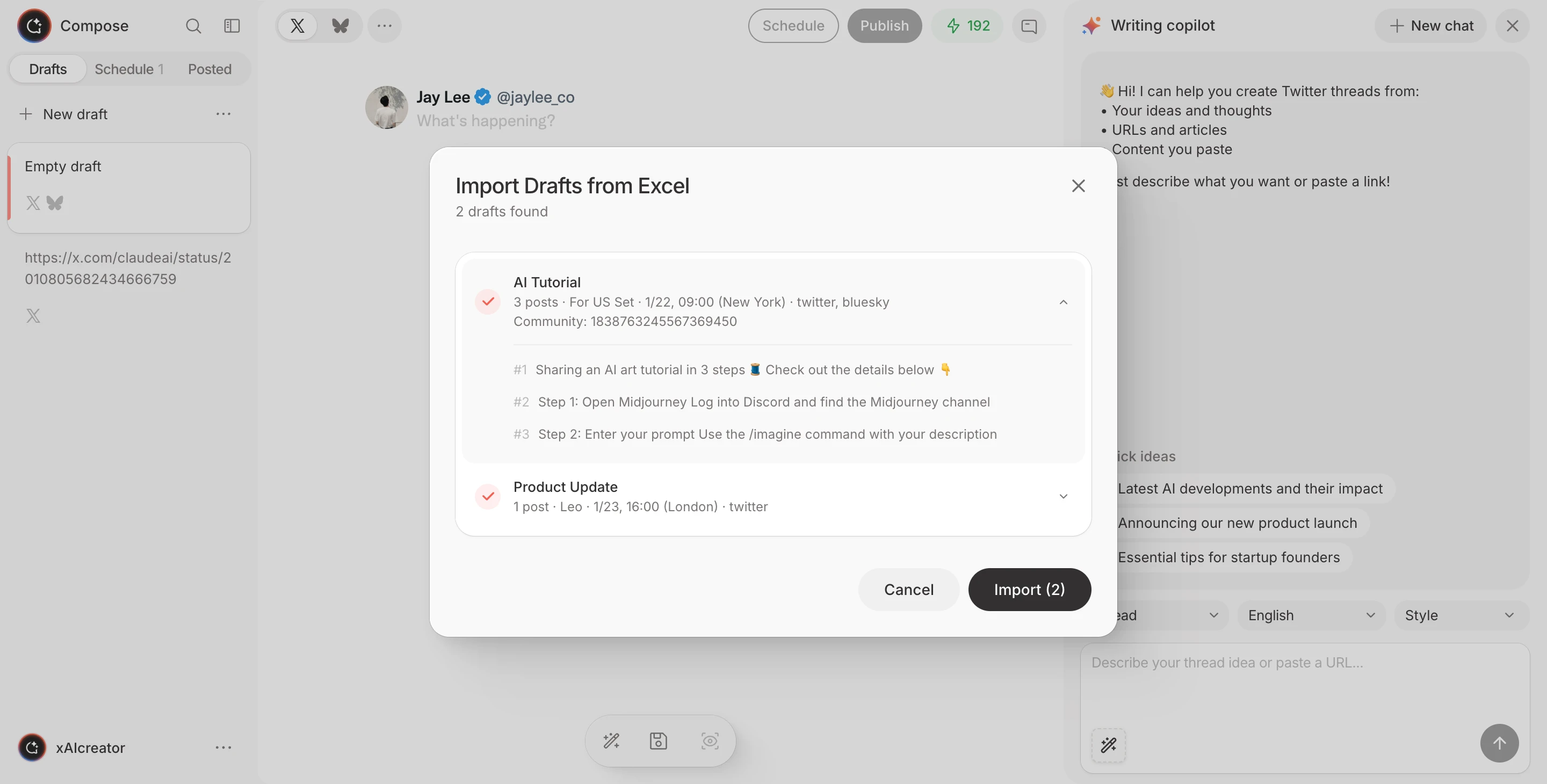
- Click Upload in the import dialog
- Select your Excel file
- Preview the imported content
- Check for any validation errors
Step 4: Confirm
- Review the preview of all posts
- Check the scheduled times
- Click Import to confirm
Import Options
Save as Drafts
Import all posts as drafts for review before scheduling:
- Edit content after import
- Add images or threads
- Schedule when ready
Schedule Immediately
Posts are scheduled based on the scheduled_at column:
- Times are interpreted in your selected timezone
- Posts without times are saved as drafts
Social Set Selection
Choose which account group receives the imported posts:
- All posts go to the selected Social Set
- Switch Social Sets for different campaigns
Image Support
Using Image URLs
Add image URLs in the image_url column:
- Use direct links to image files
- Supported formats: JPG, PNG, GIF, WebP
- Images are downloaded and attached automatically
Tips for Images
- Use reliable image hosting
- Ensure URLs are publicly accessible
- Check image dimensions before import
Twitter Communities
Target specific Twitter Communities with your imported posts:
- Add a
community_idcolumn - Enter the Community ID for each post
- Posts will be published to that Community
Find your Community ID in the Community URL.
Troubleshooting
Common Issues
| Issue | Solution |
|---|---|
| File won't upload | Ensure it's .xlsx format |
| Times are wrong | Check timezone setting |
| Images missing | Verify URLs are accessible |
| Posts not appearing | Check if saved as drafts |
Validation Errors
The import preview shows any issues:
- Missing required content
- Invalid date formats
- Unreachable image URLs
Fix issues in your Excel file and re-upload.
Best Practices
- Start with a small batch to test
- Use consistent date/time formats
- Keep backup of your Excel files
- Review drafts before scheduling
- Include variety in your content