
Compose Social Media Posts and Threads
Learn how to draft, review, make accessible, schedule, and publish platform-specific social media posts and threads with xAIcreator Compose.
Overview
Compose is the xAIcreator workspace for preparing social posts and threads. Use it to write a source draft, create platform-specific versions, add media, collect feedback, and choose whether to publish now, schedule, or keep the work as a draft.
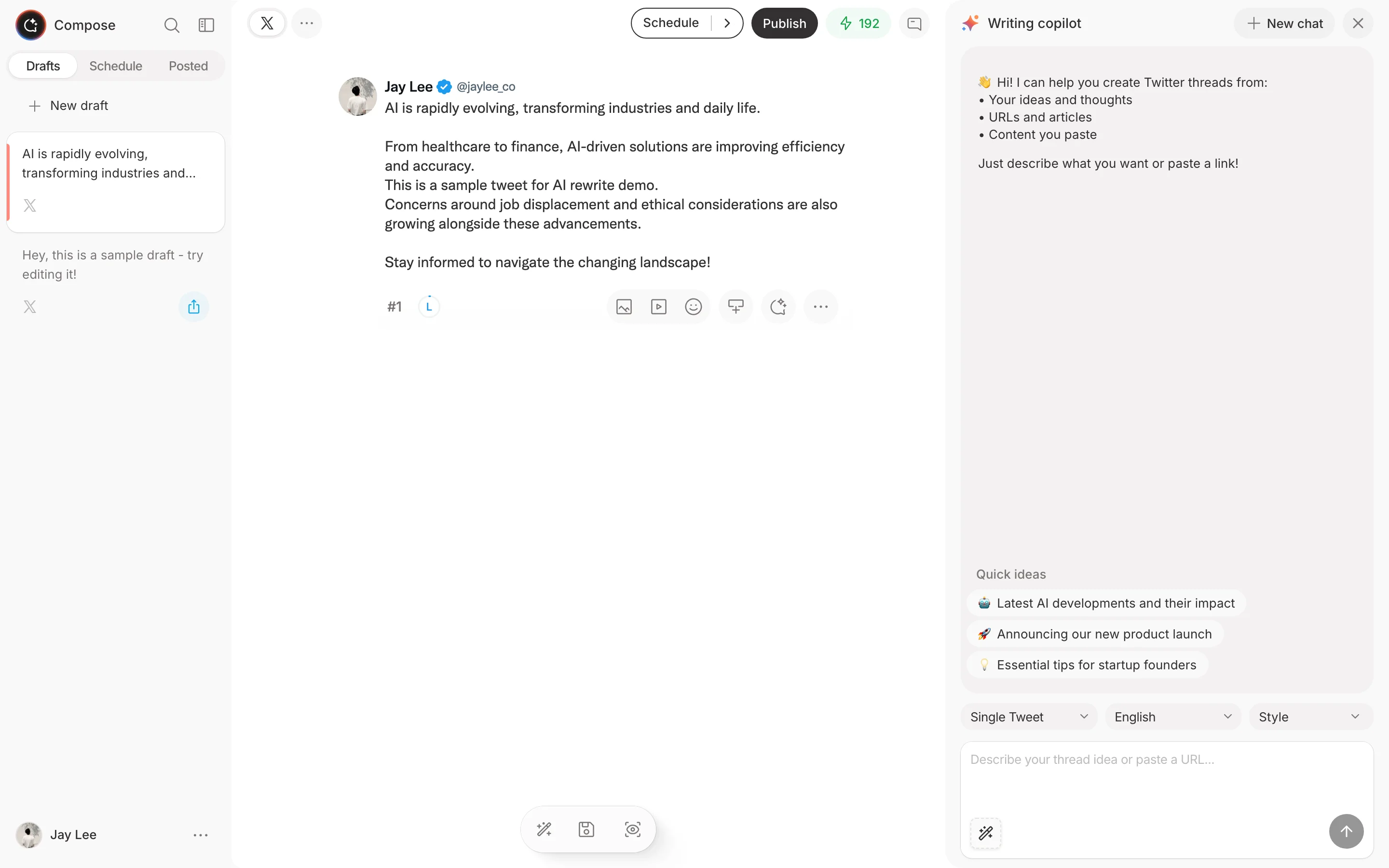
Start a Draft
- Open Compose from the dashboard.
- Choose the account or Social Set for the content.
- Write or paste your first post.
- Check the character indicator for the selected platform.
- Add supported images, GIFs, or video when the destination allows them.
Compose accepts common image, GIF, MP4, and QuickTime uploads. The editor applies platform-aware media rules, so the combination allowed for one network may differ from another. Confirm the final post in each destination preview before publishing.
Build a Thread
Use Add Tweet Below to create another post in a thread. Each block can hold its own copy and media. You can move blocks up or down, remove a block, or merge it with the previous one while editing.
Keep one idea in each block. Before publishing, read the thread from top to bottom and verify that references such as “this chart” or “the next step” still point to the correct item after reordering.
Use AI Assistance Carefully
The AI tools can generate a starting draft, rewrite selected copy, change tone, or expand a short idea. Treat the result as an editable suggestion.
Before accepting AI-assisted copy:
- compare claims, names, dates, and links with the original source;
- remove invented examples or unsupported certainty;
- restore your brand voice and the destination platform's context;
- keep required sponsorship or relationship disclosures with the adapted post;
- check that the copy does not promise a product capability that is unavailable.
For a complete source-review workflow, read the AI Content Creation Guide. Keep the approved social style guide beside the draft when checking voice and tone.
Add Accessible Media
Compose can hold the post copy and media, but accessibility controls vary by platform. xAIcreator does not currently provide a dedicated alt-text publishing field in Compose. Prepare an image description with the draft, then add it in the destination platform where that control is supported.
Use this pre-publish check:
- describe the image's purpose, not every decorative detail;
- include accurate captions for spoken video and relevant sound;
- do not rely on color alone to communicate status or meaning;
- keep text overlays readable against their background;
- use direct language and explain unfamiliar abbreviations.
Keep a written social media accessibility checklist beside the draft so the same review is applied to every platform version.
Save and Review Drafts
Compose caches draft changes locally and queues eligible changes for server synchronization. The save indicator shows the current state. Wait for synchronization before closing the page or changing devices, especially when the connection is unstable.
To collect feedback outside the editing workspace:
- Open the draft's share control.
- Enable the public link.
- Copy the link and send it to the reviewer.
- Review comments for the relevant platform version.
- Disable the public link when the review is complete.
A public draft link lets visitors view the shared draft and, with a free account, leave comments. The current share control is on or off; it does not expose a link-expiration setting.
Publish or Schedule
When the draft is ready, you can publish immediately, choose a future date and time, or leave it as a draft. Scheduled content is also visible in the Visual Calendar, where month, week, day, and queue views help you inspect timing and move scheduled items.
Before sending a post to the queue, verify the selected account, platform version, media, link destination, time zone, and any required disclosure. For a broader planning workflow, see the Social Media Scheduling Guide.
Final Checklist
- The opening makes sense without the source article beside it.
- Every factual claim still matches the approved source.
- Copy and media fit the selected platform.
- Image descriptions, captions, and disclosures are ready where needed.
- Comments on the relevant platform version are resolved.
- The publishing account, time zone, and scheduled time are correct.
- The save indicator has finished synchronizing before you leave.