

Learn how to schedule Twitter posts, manage scheduled tweets, build a weekly content queue, and review every post before it goes live with a reliable Twitter scheduling workflow.
Introduction
If posting on X depends on you remembering to open the app at the right time, the process will eventually break. A meeting runs long, a launch gets busy, or a draft disappears under twenty new ideas.
This guide explains how to schedule Twitter posts with X's native scheduler, how to manage scheduled tweets, and when a dedicated workflow makes more sense. You will also see how to plan several accounts without giving up the final human review.
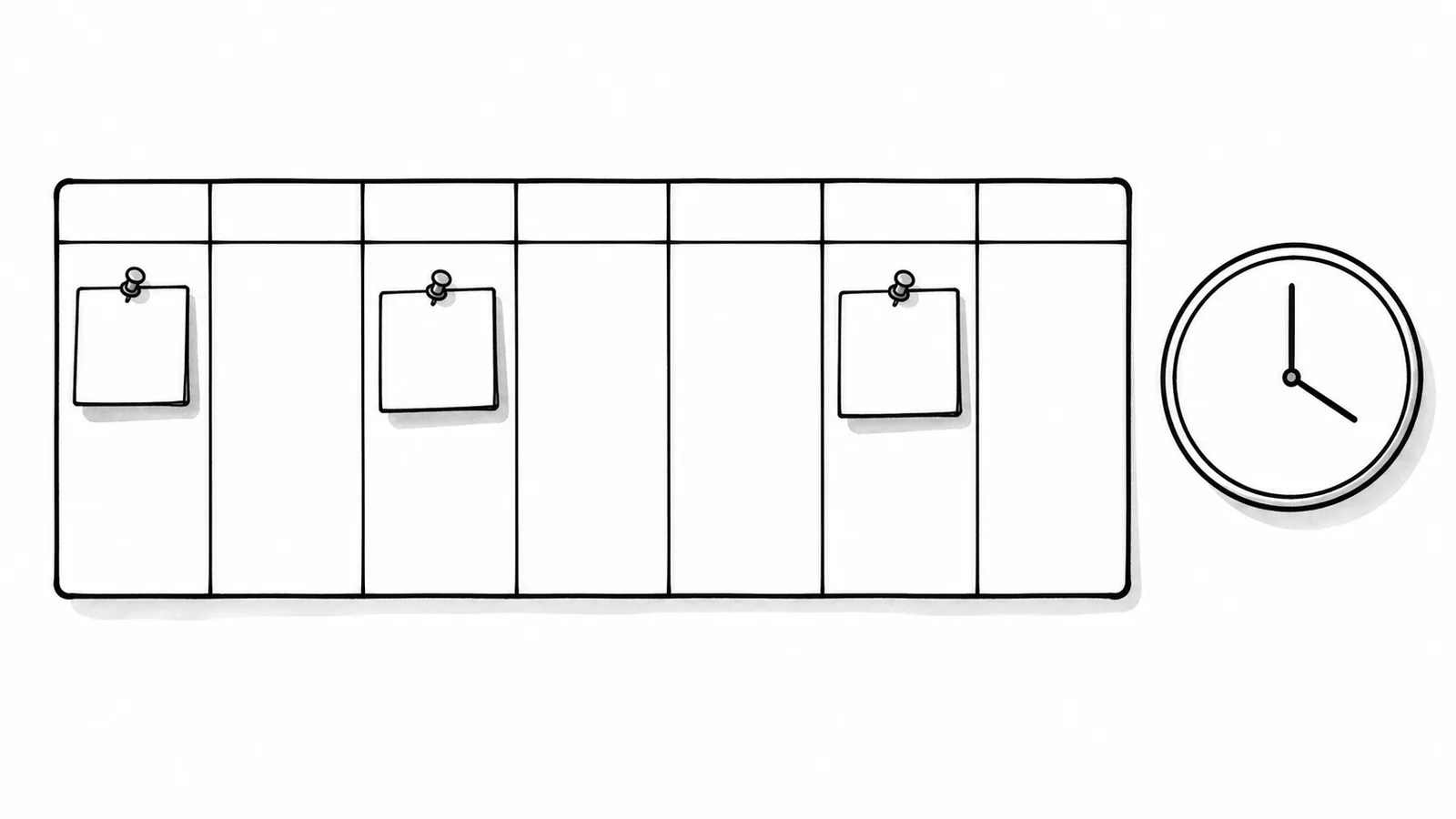
On x.com, write a post, select the calendar icon, choose the date and time, confirm the schedule, then open Unsent posts whenever you need to review it.
How to Schedule Twitter Posts with X's Native Scheduler
X includes a native scheduling option in its web composer. X's help documentation says the calendar icon opens the scheduling controls, while Unsent posts contains drafts and scheduled posts.[1]
- Open the composerSign in at x.com and select Post to open the standard compose box.
- Write and preview the postAdd the text and media you want to publish. Check links, mentions and the attached image or video.
- Select the calendar iconChoose the date, time and time zone shown by the scheduler.
- Confirm the scheduleReview the selected time, confirm it, then finish scheduling the post.
- Check Unsent postsOpen the composer again and use Unsent posts to confirm that the post is in the scheduled list.
Native scheduling works well for a small number of posts on one account. It is also the fastest way to schedule a single announcement when you do not need an approval flow or a broader content calendar.

How to View, Edit or Delete Scheduled Tweets
Open the post composer on x.com and select Unsent posts. Switch to the scheduled list, choose the post you want to change, and review its content and timing. If the interface does not allow the exact edit you need, remove the scheduled version and create a corrected one.
Use a quick preflight check before saving the replacement:
- Open every link and confirm the destination still works.
- Check names, handles, dates and campaign terms.
- Preview media crops on both desktop and mobile.
- Make sure the message still fits the current news context.
- Confirm the displayed time zone before scheduling again.
X allows standard posts to include text and supported media, but media formats and attachment limits still apply.[1] A failed upload is often a media problem rather than a scheduling problem.
When Native Scheduling Is Not Enough
A built-in scheduler answers one question: when should this post go live? A content operation has more questions. Which account owns the draft? Who reviewed it? Is there enough space between promotions? Does the LinkedIn version need a different opening?
A dedicated scheduler becomes useful when you need:
- Multiple accounts: manage several creator, brand or client accounts without switching browser sessions.
- A visual calendar: see the month, week, day and queue instead of checking posts one by one.
- Draft review: save work, request feedback and approve the final version before scheduling.
- Batch preparation: import a prepared spreadsheet rather than copying dozens of posts manually.
- Platform-specific versions: adapt one idea for X, LinkedIn, Threads, Bluesky or Mastodon.
If you are still designing the broader system, start with our guide to social media scheduling. For a deeper look at scheduler features, read the social media post scheduler guide.
If the queue is part of a wider publishing system, our Twitter automation guide explains which preparation and publishing tasks are appropriate to automate and where human approval should remain mandatory.
Build a Weekly Twitter Scheduling Workflow with xAIcreator
xAIcreator connects to a user's account through an authorized application flow. X documents OAuth user access as the method applications use to act with approved scopes on behalf of a user.[2] The publishing step ultimately uses X's supported post creation capabilities rather than scripting the website.[3]
- Collect ideas in one placeTurn notes, links and long-form material into draft concepts. Keep the source beside each draft so facts are easy to check.
- Create platform versionsUse AI rewriting as a first pass, then edit the X version until it sounds like you and fits the post format.
- Save drafts for reviewKeep unfinished work out of the live queue. Share drafts with teammates or reviewers before any date is assigned.
- Import prepared posts in batchesUse the Excel import when a campaign already has content, time zones, Social Sets, image URLs or community targets.
- Arrange the visual calendarUse month, week, day or queue view to spread themes and promotions. Drag a post when the surrounding context changes.
- Review performance after publishingUse X analytics to learn which topics and formats work. xAIcreator does not claim to predict an optimal posting time, so your own data should guide future timing.

The point of this workflow is not to automate judgment. It is to remove copying, account switching and calendar maintenance so you have more time to improve the actual post. Our guide to writing stronger tweets can help with that final edit.
Twitter Scheduling Mistakes and Troubleshooting
Scheduling in the wrong time zone
Write the time zone into the campaign brief, especially when several people contribute drafts. Before launch day, compare one scheduled item with the calendar used by the team.
Publishing the same copy across every account
Repeated content makes accounts feel interchangeable and may create policy problems when automation produces duplicative posts. Keep the core idea, but rewrite the hook, example and call to action for each audience.
Attaching unsupported or oversized media
Validate media before it enters the queue. X's media upload guidance lists the formats, media categories, file sizes and duration limits to check before creating the final post.[4]
Using generic “best time” charts as a rule
Generic studies combine very different audiences. Start with a reasonable window, then compare impressions, engagement and clicks in your own account data. The Twitter analytics guide explains how to review those metrics.
Frequently Asked Questions
Can you schedule posts directly on Twitter?
Yes. On x.com, open the composer, select the calendar icon, choose a date and time, and confirm the schedule. You can find the result under Unsent posts.
Can I schedule Twitter posts for free?
X's native web scheduler is available inside the composer. Third-party tools may have free plans, usage credits or paid account limits, so check the current plan before connecting an account.
Can I schedule the same post to several accounts?
A multi-account tool can reduce account switching, but do not publish identical or substantially similar content across accounts. Adapt the post for each audience and review it before scheduling.
Does scheduling reduce engagement?
Scheduling is a delivery method, not a quality signal. Results still depend on the topic, writing, audience and follow-up. Compare your own published data instead of assuming scheduled posts will perform better or worse.
Conclusion
Use X's native scheduler when you have one account and a short queue. Move to a visual workflow when you need multiple accounts, batch import, draft review or platform-specific versions. Either way, keep a human check between the draft and the publish button.
Plan and review posts before they go live
xAIcreator combines AI-assisted drafting, multi-account scheduling, a visual calendar, batch import and draft review in one workflow.
Sources & Further Reading
- X Help: How to PostOfficial instructions for composing, scheduling and finding unsent posts.
- X Developer Docs: OAuth 2.0 User Access TokenOfficial overview of user authorization and scoped application access.
- X API: Create PostsOfficial documentation for creating posts through the X API.
- X API Media Upload Best PracticesOfficial guidance for validating and processing post media.
Yee is the founder of XAICreator, an AI-powered social media marketing platform. He specializes in building tools that help creators and marketers grow their presence on X (Twitter).
With expertise in AI, SEO, and content marketing, Yee has helped hundreds of users optimize their social media strategy and increase engagement through data-driven insights.