
Use this social media accessibility checklist to review alt text, captions, color contrast, and plain-language copy before every post goes live.
Introduction
An accessible social post gives people more than one way to understand its message. Someone who cannot see an image needs a useful description. Someone who cannot hear a video needs captions. Someone with low vision needs readable contrast, while someone reading quickly on a phone benefits from clear structure and direct language.
This social media accessibility checklist turns those needs into a repeatable publishing routine. It covers source copy, images, video, links, color, emoji, platform controls, and the final human review. Use it for every campaign, then keep a platform-specific note for any control that must be completed after scheduling.

Write for meaning first. Add a purpose-based image description, accurate captions, sufficient contrast, descriptive links, readable formatting, and a platform-by-platform final check. Never assume an automatic caption or generated description is correct without review.
1. Social Media Accessibility Checklist: Start with Meaning
Accessibility begins before the design is exported. Write one sentence that states what the audience should learn or do. Then ask whether the post still communicates that sentence without the image, without sound, and without color. Any missing meaning needs an equivalent in text, captions, audio description, or another available format.
The W3C explains that text alternatives should represent the information or function of non-text content.[1] That makes context more useful than a literal inventory. A product chart may need its main comparison and conclusion. A decorative divider may need no description. A button image needs the action it performs, not the shape of its icon.
- Message: Can the main point be understood without one sensory cue?
- Action: Is the requested action stated in text?
- Context: Does the post explain abbreviations, references, and time-sensitive facts?
- Fallback: Is there an equivalent when a media format cannot be perceived?
2. Write Useful Alt Text and Image Descriptions
First decide whether the image is informative, functional, or decorative. The W3C alt decision tree recommends describing information that is not already present in nearby text, while decorative images can use a null alternative in environments that support it.[2] Social platforms expose different controls, so confirm the current workflow in each destination.
Good image descriptions are concise but not artificially short. Name the subject, the relevant action, and the detail that supports the post's point. For a chart, include the trend or comparison, not every grid line. For a screenshot, identify the interface state and the control the reader needs. Avoid starting every description with “image of” when the platform already announces the media type.
“A graph about results.” It gives no usable finding.
“Line chart showing sign-ups rising after the onboarding update, with the largest increase in week three.”
Do not paste the caption into the image description if both would say the same thing. The caption can provide commentary; the image description should replace the visual information. If important words are embedded in an image, repeat them in the post copy or description and avoid images of text when plain text will work.
3. Make Video and Audio Understandable
Provide accurate captions for spoken dialogue and relevant non-speech audio. Automatic captions are a draft, not a finished accessibility feature. Review names, technical terms, speaker changes, timing, punctuation, and sounds that affect meaning. W3C guidance also recommends planning accessibility during scripting and storyboarding, because clear speech, readable overlays, and sufficient pauses are easier to build before recording.[3]
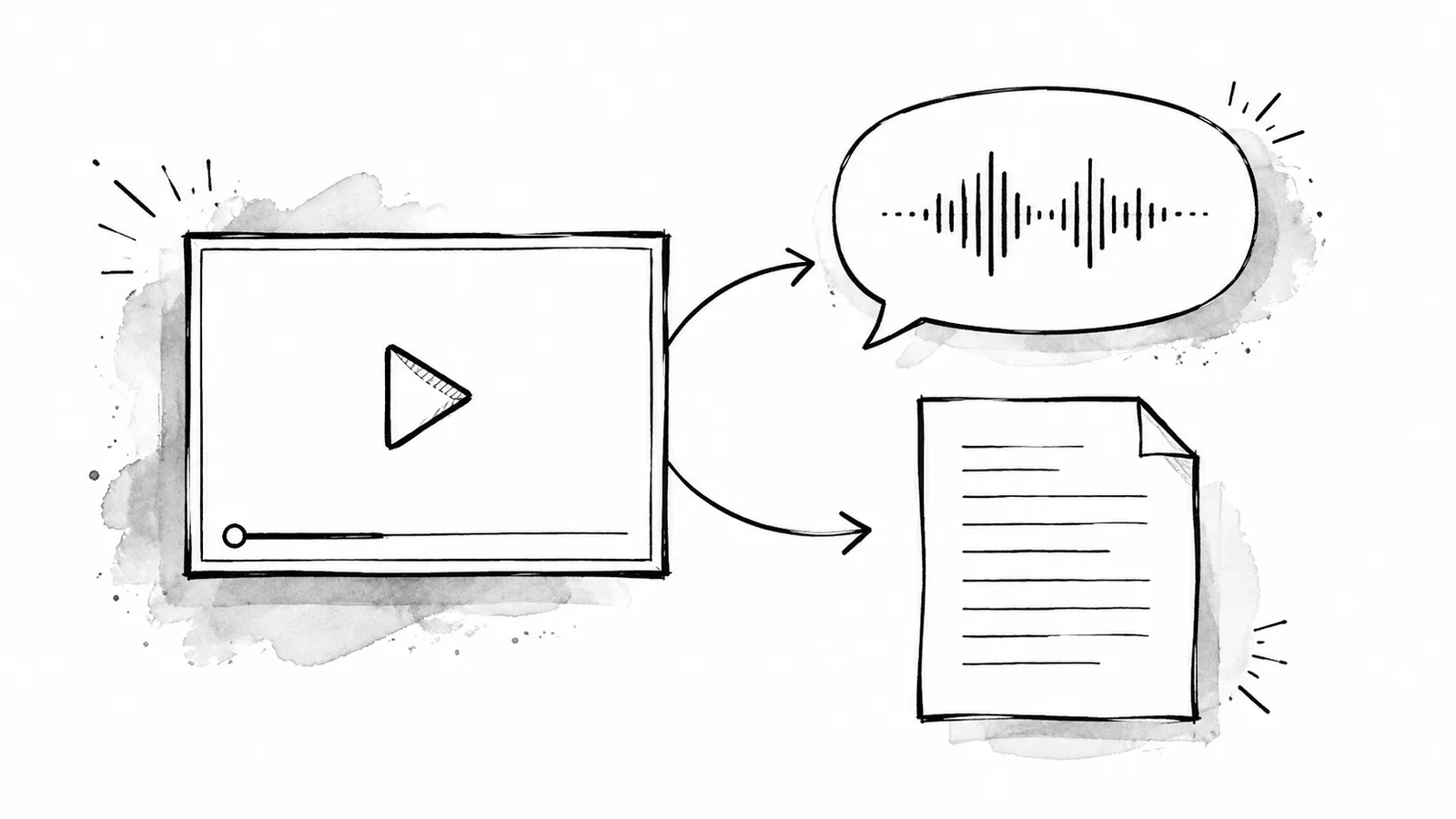
A transcript helps with audio-only material and gives people another way to scan or search the content. A video may also need audio description when important actions, diagrams, or on-screen changes are not explained in dialogue. For short social clips, you can sometimes incorporate that description into the spoken script.
- Caption the speechInclude who is speaking when identity is not visually obvious.
- Capture meaningful soundNote alarms, laughter, music changes, or other audio that affects interpretation.
- Describe visual-only informationAdd it to narration, a description track, the post copy, or a transcript.
- Review on muteConfirm that a viewer can follow the point without hearing audio.
- Review without the screenConfirm that essential visuals are also communicated another way.
4. Check Contrast, Color, and Text Overlays
Do not use color as the only label for success, failure, categories, or required actions. Add shapes, patterns, icons, or text labels. For text and images of text, WCAG 2.2 explains a minimum contrast ratio of 4.5:1 for regular text and 3:1 for large text, with defined exceptions.[4] Treat these ratios as a useful baseline when making social graphics, then test the exported asset rather than only the design file.

Keep overlay text large, left aligned when practical, and separated from busy backgrounds. Avoid flashing content and rapid movement. Put the core information in the post copy as well, because a graphic can be cropped, compressed, or displayed against an unexpected interface.
5. Make Copy, Links, Hashtags, and Emoji Readable
Short sentences and familiar words help many readers, including people using translation, magnification, or screen readers. Federal plain-language guidance recommends addressing the reader directly, organizing information around their needs, and using headings and lists to make material easier to follow.[5]
- Links: Describe the destination or action instead of writing “click here.”
- Hashtags: Use CamelCase for multiword tags, such as #SocialMediaTips.
- Emoji: Use them sparingly and place them where their spoken names will not interrupt a sentence.
- Unicode styles: Avoid decorative mathematical characters that imitate bold or italic text.
- Abbreviations: Spell out unfamiliar terms on first use.
- Calls to action: State what happens next and where the link leads.
Read the post aloud with punctuation included. This catches dense hashtag blocks, repeated emoji, missing context, and link text that makes no sense outside its visual position.
6. Build Accessibility into the Publishing Workflow
Add accessibility fields to the source brief before anyone designs media. A small brief can include message, image purpose, draft image description, caption owner, transcript location, contrast result, disclosure, reviewer, and destination-platform check. Keeping those items beside the content reduces last-minute searching.
xAIcreator can support the planning and review parts of this workflow. Draft management keeps work unpublished while checks are open. Public draft links let reviewers comment on the relevant platform version. The Visual Calendar provides month, week, day, and queue views for scheduled work, and Batch Import can create text or image drafts from an Excel plan.
xAIcreator Compose does not currently have a dedicated alt-text publishing field. Keep the approved image description with the draft, then add it through the destination platform when that platform supports image descriptions. Confirm captions and other accessibility controls there as well.
For the wider planning process, use the social media post scheduler guide and the social media scheduling guide. If AI helped draft the copy, the AI content creation guide provides an additional source and fact-review workflow.
7. Run a Final Human Review
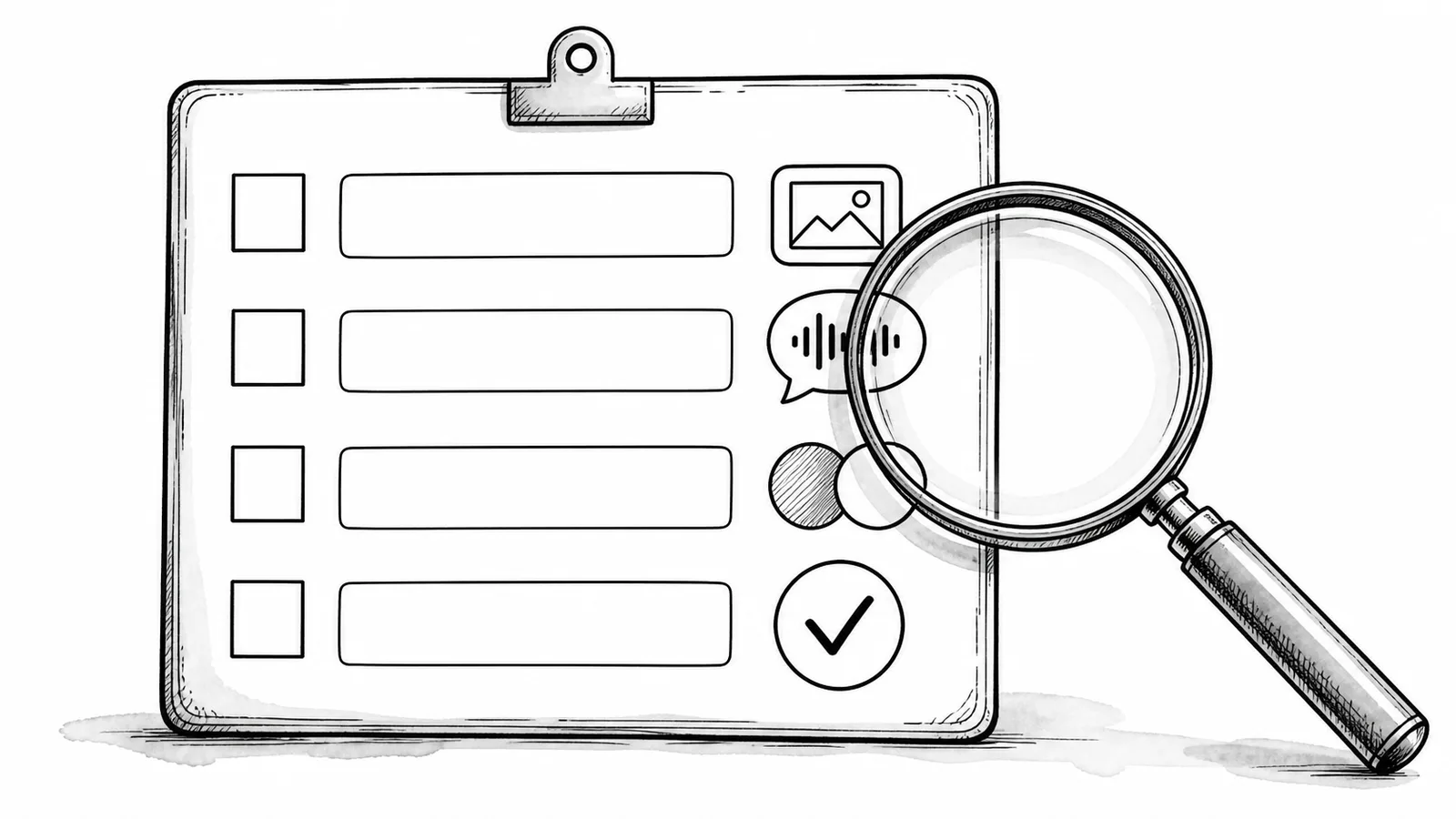
Assign one person who did not create the asset to run the final check. They should compare the post with the approved source, inspect every media item, play video with and without sound, verify links, and open the scheduled version for each platform. Where possible, include disabled people in usability research rather than treating a checklist as a substitute for lived experience.
Record the result in a simple status: ready, needs changes, or blocked. A missing caption, unavailable transcript, failed contrast test, or unresolved factual question should block publishing. When a platform lacks the needed control, choose another equivalent, provide the information in the post copy, or use a more accessible format.
Frequently Asked Questions
What should a social media accessibility checklist include?
Check meaning without color, alt text or image descriptions, captions, transcripts or visual description, contrast, text overlays, readable copy, descriptive links, hashtags, emoji, disclosures, and each platform's final accessibility controls.
Should every social media image have alt text?
Informative images need an equivalent description. Purely decorative images may use a null alternative where supported. On social platforms, confirm the available control and make sure important information also appears in accessible post copy.
Are automatic captions enough?
No. Review automatic captions for names, terminology, timing, punctuation, speaker changes, and meaningful sounds before publishing.
Does xAIcreator publish image alt text?
Compose does not currently provide a dedicated alt-text publishing field. Prepare and approve the description with the draft, then add it in the destination platform where supported.
Conclusion
A social media accessibility checklist works when it is part of the normal publishing path. Start with meaning, create equivalent text and captions, test contrast and readability, prepare platform-specific controls, and give a named reviewer authority to stop the post. The result is clearer content for more people and a workflow the team can repeat.
Sources & Further Reading
- W3C WAI: Images TutorialGuidance on text alternatives for informative, decorative, functional, and complex images.
- W3C WAI: Alt Decision TreeA context-based process for deciding whether and how an image should be described.
- W3C WAI: Audio and Video ContentPlanning guidance for captions, description, clear audio, readable overlays, and sensory alternatives.
- W3C WAI: Understanding Contrast MinimumExplanation of WCAG 2.2 contrast requirements and exceptions.
- PlainLanguage.gov: Federal Plain Language GuidelinesPractical guidance for reader-focused structure, direct wording, headings, and lists.
Keep every review step beside the draft
Use xAIcreator drafts, public comments, Social Sets, Batch Import, and the Visual Calendar to organize a human-reviewed publishing workflow.
Yee is the founder of XAICreator, an AI-powered social media marketing platform. He specializes in building tools that help creators and marketers grow their presence on X (Twitter).
With expertise in AI, SEO, and content marketing, Yee has helped hundreds of users optimize their social media strategy and increase engagement through data-driven insights.